From a fresh account to your first synced orders in about ten minutes. No spreadsheets to import, nothing to install — just follow along.
 Johannes Tebbert, founder of Findig
·
~10 minutes
·
Last reviewed
Johannes Tebbert, founder of Findig
·
~10 minutes
·
Last reviewed
Creating the account takes a moment: an email and password, or one tap with Google or Etsy. When you sign in for the first time, Findig walks you through a short setup wizard. This page is the same five steps, written out — so you can read ahead, or come back if you get stuck on one.
You don't need to prepare anything beforehand. Findig pulls your products straight from Etsy, so there's no copying, no CSV files, and nothing to type up in advance. You'll mostly be checking that Findig guessed things right and filling in a couple of numbers.
Five short steps. You can skip any of them and come back later — nothing here is set in stone.
On the first screen, click “Connect with Etsy.” That sends you over to Etsy's own page, where you log in (if you aren't already) and approve the connection. Then Etsy sends you straight back to Findig.
This is the normal, secure way apps connect to Etsy — you're typing your password on Etsy's site, never on ours. And to be clear about what Findig can do: it never touches your shop on its own. It reads your orders and listings, and it only writes something back when you press the button yourself — marking an order as shipped sends that tracking number to Etsy, and a listing change is only sent after you approve it.

Next, Findig pulls in your active Etsy listings. Click the import button and it fetches everything — titles, photos, and all the options buyers can pick (your colours, sizes, and so on).
When it's done you'll see a quick summary, like “Imported 24 listings.” That's your whole shop now inside Findig. From here on, new orders will match themselves up to these products automatically.

This is the one step worth slowing down for. Findig needs to know how to count stock when an order comes in — and that depends on what kind of product it is. The good news: Findig makes its best guess for every product, so you're mostly just checking it got things right.
For each product you'll see a few simple things to confirm:


Now tell Findig how many of each thing you have right now. Go down the list and type in the counts — “12 blue, 5 red, 0 green,” and so on.
Don't have exact numbers handy? That's fine. Leave them at zero and fix them later — Findig will still track every sale from today onward, and you can adjust any count anytime on the Stock page. The point is just to give it a starting line.

Almost done. You'll pick a light or dark look (purely a preference — change it anytime in Settings), and you can switch on a daily low-stock email so Findig quietly tells you when something's running low. Both are optional.
Then hit “Sync my first orders.” Findig pulls in your recent Etsy orders, matches each one to the right product, and deducts the stock. That's setup finished — you're looking at a live picture of your shop.
After setup, here's the lay of the land. Everything's reachable from the menu, and you never have to touch setup again unless you want to.
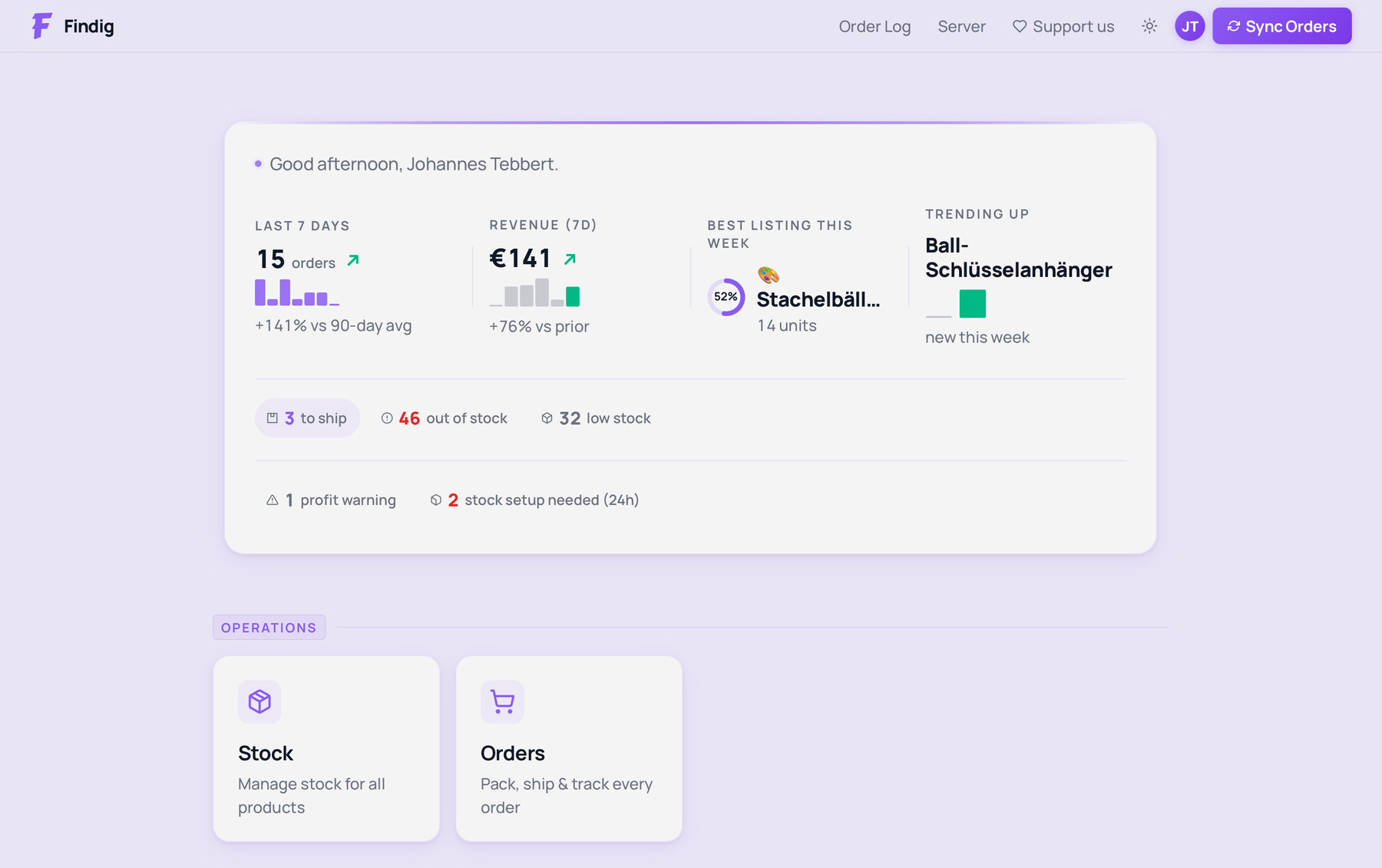
Your dashboard — a quick health check of the shop and anything that needs attention.
Every product and how many you have, by colour and size. Adjust counts here anytime.
Everything that came in from Etsy. Set up your own statuses — like “Printing” or “Packed” — to match how you actually work.
Your real profit after Etsy's fees, payment processing, postage and materials — per product and over time.
What to make next, based on what's actually been selling, so you restock before you hit zero.
Fine-tune any product — bundles, packaging, and per-option costs. The deeper version of Step 3.
Your buyers ranked by revenue — who orders, how often, and what they buy.
Business costs that never touch Etsy — subscriptions, supplies, ads, equipment. They come off your profit on Statistics.
Download your orders as a CSV for Excel, LibreOffice or your accountant.
If something doesn't look the way this guide describes, or you're just not sure what to pick — send me a message. I read everything and reply personally, usually within a day.
Send me a message →